
Microsoft Windows Interactive Services and Session 0 Isolation
Updated: May 13
Table of Contents
Overview
Running applications, programs, and scripts as Windows services is straightforward with FireDaemon Pro. When those applications have interactive GUI components, those components run on Session 0. Session 0 has specific isolation behaviour and a growing set of restrictions introduced by Microsoft across Windows 10, 11, and recent Server releases. This article covers all aspects of Session 0, Session 0 Isolation, Interactive Services, and the limitations you will encounter when running interactive applications under FireDaemon Pro control. It also documents the FireDaemon solutions that address those limitations.
What Is Session 0
Session 0 is a specialised Windows session. All Windows services, including those managed by FireDaemon Pro, run in this session. Interactive GUI components such as windows, dialogs, and popups, as well as session characteristics such as mapped drives and environment variables, are completely isolated from the regular logged-in Windows desktop session. This isolation is enforced by the operating system and is not configurable.
Session 0 Isolation was introduced in Windows Vista and Server 2008 to prevent shatter attacks and related privilege escalation vectors. It is not present on Windows XP or Server 2003.
Session 0 has no user account directly associated with it. It has no Windows Explorer shell, no 3D graphics acceleration, no screen saver, and no screen lock. It cannot be logged into directly. Access requires switching to it, which is similar in mechanism to Fast User Switching.
The Interactive Services Detection Service (UI0Detect) is the built-in Windows mechanism that enables switching between a logged-in desktop session and Session 0. Microsoft has removed UI0Detect from Windows 10 Version 1803, Windows 11, Server 2019, Server 2022, and Server 2025.
Session 0 Known Limitations
The following is a complete list of known Session 0 limitations across all supported Windows versions. The sections below address each one in detail.
Session 0 cannot be logged into directly. It must be switched to.
Session 0 has no associated user account.
Session 0 has no Windows Explorer shell, no 3D graphics acceleration, no screen saver, and no screen lock.
Session 0 is inaccessible by default on all Windows installations. It must be explicitly enabled.
Once enabled, the Windows Session 0 notification dialog appears in the logged-in session taskbar. Use this dialog to switch to Session 0.
Windows Event Logs may show errors or warnings about services running interactively in Session 0 being invalid or disallowed. These can generally be safely ignored.
Network connectivity may drop when switching to Session 0. This is problematic when using RDP or other remote control software.
Session 0 may show a black screen on first switch.
Application windows and dialogs on Session 0 may redraw incorrectly.
Session 0 logs out automatically after approximately 60 seconds of keyboard and mouse inactivity. RDP sessions are terminated at logout.
On Windows 10, 11, Server 2016, 2019, and 2022, keyboard and mouse input on Session 0 is completely ignored.
Session 0 is available but inaccessible on Windows Server Core and other headless Windows installations.
Legacy applications without a proper application manifest may not function correctly under LocalSystem, particularly those that require UAC virtualisation.
Cut and paste between user sessions and Session 0 may not function reliably.
FireDaemon Zero and FireDaemon ZeroInput
FireDaemon Zero and FireDaemon ZeroInput resolve the majority of Session 0 limitations on modern Windows versions. Deploy both if you are running interactive FireDaemon Pro services on Windows 10, 11, Server 2016, 2019, or 2022.
FireDaemon Zero restores the ability to switch between your logged-in desktop session and Session 0 on all Windows versions where Microsoft has removed or restricted this capability. FireDaemon Pro and FireDaemon Zero both configure Interactive Services automatically on installation. If FireDaemon Zero is installed before a Windows feature upgrade, it preserves the UI0Detect service through the upgrade. If UI0Detect is absent, FireDaemon Zero re-creates it.
FireDaemon ZeroInput is a free kernel driver that restores keyboard and mouse input on Session 0 on Windows 10, 11, Server 2016, 2019, and 2022. It is the only supported resolution to the Microsoft input blocking change described in this article. ZeroInput is deployed in conjunction with FireDaemon Zero.
Running Interactive Applications as Services with FireDaemon Pro
FireDaemon Pro runs applications, programs, and scripts as Windows services. When those applications include interactive GUI components, those components are displayed on Session 0. Before deploying, review the following.
Service User Accounts
Windows services can run under a variety of user accounts. FireDaemon Pro runs services as LocalSystem by default. LocalSystem is a highly privileged account managed by the Windows Service Control Manager (SCM). Some applications do not function correctly under this account.
If you encounter application issues, run the FireDaemon Pro service under the specific user account used to install the application originally. That account must be a member of the local Administrators group or a domain Administrators group, particularly for services that interact with the desktop on Session 0. The logon account is configurable in the logon section of the relevant FireDaemon Pro service.
Legacy Console Mode
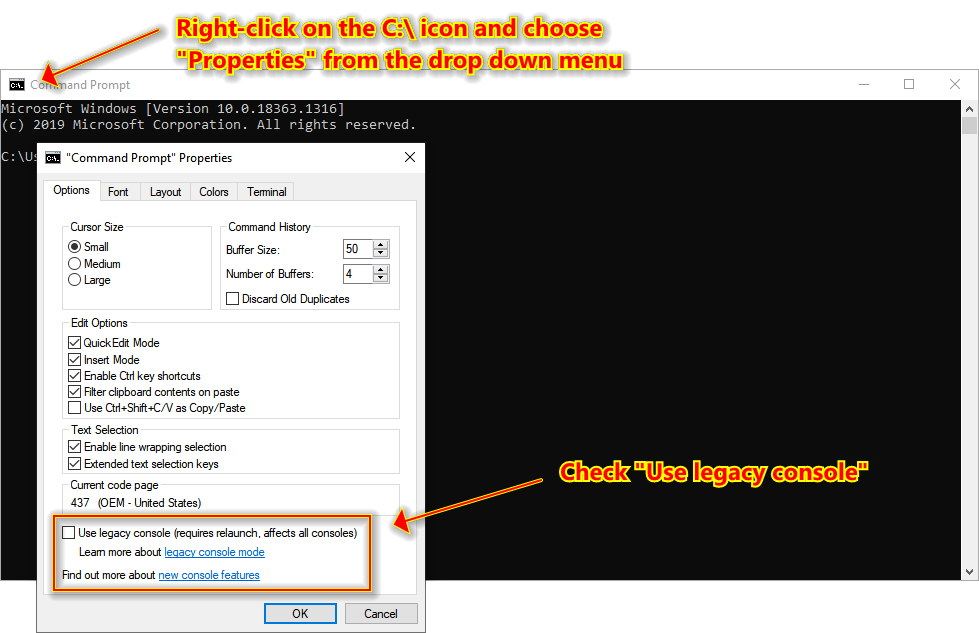
Recent versions of Windows use a new console host by default. Console-based applications may not display at all on Session 0 under this mode. To ensure console applications display correctly, enable Legacy Console Mode for the user account under which the service runs.
Log in as that user and set the following registry value:
HKEY_CURRENT_USER\Console\ForceV2 = 0 (REG_DWORD)Alternatively, open a Command Prompt, right-click the title bar icon, open Properties, and enable Legacy Console Mode from there.
Patch Windows First
Several Session 0 issues, including display problems and switching failures, have been resolved by Windows Update patches alone. Fully patch Windows before deploying any FireDaemon product and before attempting to access Session 0. Apply all critical and recommended updates, including Internet Explorer 11, Microsoft Edge, and root certificate updates.
Manually Enabling Interactive Services, Interactive Service Detection, and Session 0
The ability to switch to Session 0 is disabled by default on all versions of Windows from Vista and Server 2008 onwards. FireDaemon Pro and FireDaemon Zero both enable this automatically on installation. If you are not using either product, or need to enable it manually, follow these steps.
Note: on Windows 10, 11, Server 2016, 2019, and 2022, keyboard and mouse input will still not work on Session 0 after completing these steps. See the Keyboard and Mouse Do Not Work on Session 0 section for the resolution. Additionally, Microsoft has removed UI0Detect entirely from Windows 10 Version 1803, Windows 11, Server 2019, and Server 2022. See the Interactive Services Detection Service Removed section for the resolution.
Step 1: Enable Interactive Services
Run the following at an elevated command prompt:
reg.exe ADD HKEY_LOCAL_MACHINE\SYSTEM\CurrentControlSet\Control\Windows /v NoInteractiveServices /t REG_DWORD /d 0 /fReboot if the change does not take effect immediately.
Step 2: Enable the Interactive Services Detection Service
Run the following at an elevated command prompt:
sc.exe config ui0detect start= auto
sc.exe start ui0detect
When interactive GUI components are present on Session 0, the UI0Detect notification icon blinks in the taskbar. Double-click the icon to open the switching dialog.

Click "View the message" to switch to Session 0.

Step 3: Switch To and From Session 0 via the Command Line
Once Interactive Services and the Interactive Services Detection Service are enabled, you can switch to and from Session 0 via the command line.
Using FireDaemon Pro at an elevated command prompt:
cd "C:\Program Files\FireDaemon Pro"

:: FireDaemon Pro 4
firedaemon --session0

:: FireDaemon Pro 5
firedaemoncli session0
Using the Windows API directly:
:: Switch to Session 0
rundll32 winsta.dll,WinStationSwitchToServicesSession

:: Return from Session 0
:: Run on Session 0 as LocalSystem or a privileged user
rundll32 winsta.dll,WinStationRevertFromServicesSession
Sysinternals PsExec can launch processes interactively on Session 0 using the -i 0 switch.
Interactive Services Detection Service Removed on Windows 10 1803, 11, Server 2019, and 2022
On Windows 10 Version 1803, Windows 11, Server 2019, and Server 2022, the Interactive Services Detection Service (UI0Detect) is no longer present. Switching desktop to Session 0 is not possible through the standard mechanism on these versions. Microsoft announced this removal in advance. If you are running earlier Windows versions, this change does not affect you.
Additionally, on these versions, native Windows services marked as "Allow service to interact with the desktop" via services.msc are no longer granted interactive desktop rights by the SCM. Those services will not be visible on Session 0 even if you switch to it by other means.
FireDaemon Pro interactive services are not affected by the SCM change. FireDaemon Pro services remain visible on Session 0 regardless.
Impact on FireDaemon Pro Users
If FireDaemon Pro is installed and you upgrade to an affected Windows version, Session 0 switching via the FireDaemon Pro GUI and command line will stop working. Install FireDaemon Zero and FireDaemon ZeroInput to restore access. Existing FireDaemon Pro services will continue to run normally.
Impact on FireDaemon Zero Users
If FireDaemon Zero was installed before the upgrade to Windows 10 1803 or later, UI0Detect should have been preserved during the upgrade. Switching to Session 0 should continue to function normally. FireDaemon Zero re-creates UI0Detect if it is found to be absent after an upgrade.
Impact on FireDaemon ZeroInput Users
If FireDaemon ZeroInput was installed to restore keyboard and mouse input on Session 0, that functionality continues to work after the upgrade. FireDaemon Pro interactive services remain visible on the Session 0 desktop.
Keyboard and Mouse Do Not Work on Session 0
On Windows 10, 11, Server 2016, 2019, and 2022, all keyboard and mouse input on Session 0 is silently discarded. This is not a limitation of FireDaemon Pro or FireDaemon Zero. It is an intentional change made by Microsoft.
What Microsoft Changed
Based on direct technical correspondence with Microsoft, the change is described as intentional, by design, and made for security reasons. Microsoft did not disclose the specific security rationale. Our position is that whilst Microsoft has every right to change its operating systems, the rationale is difficult to reconcile with the sizeable installed fleet of desktop and server operating systems in which this functionality was available and working.
Microsoft modified the system device driver win32kfull.sys, specifically the RawInputThread function for keyboard input and the xxxDesktopThread function for mouse input.
On Windows 8.1 and Server 2012 R2, the logic was:
mouseInputThread()
{
    processMouseInput();
}
On Windows 10 and Server 2016 onwards, the logic became:
mouseInputThread()
{
    if (sessionId != 0)
    {
        processMouseInput();
    }
}
Input is explicitly gated to exclude Session 0.
Requesting a Fix from Microsoft
You may submit a Microsoft Premium Support Ticket via your Microsoft Contract ID and request a design change or design restore. Microsoft has confirmed a Bug ID exists for this issue. Microsoft has confirmed there is no ETA for a hotfix and no resolution is planned for any Windows Monthly Rollup at any point in time in the future.
Workaround 1: Use an Earlier Version of Windows
Keyboard and mouse input on Session 0 functions correctly on Windows Vista through Windows 8.1, and on Server 2008 through Server 2012 R2. Windows LTSC is a version of Windows that receives only security updates and is not subject to feature updates. A Windows LTSC release that predates the input change will retain both the Interactive Services Detection Service and working Session 0 input. Reinstalling your operating system may not be practical in all environments.
Workaround 2: Deploy FireDaemon ZeroInput and FireDaemon Zero
FireDaemon ZeroInput is a free kernel driver that restores keyboard and mouse input on Session 0 on Windows 10, 11, Server 2016, 2019, and 2022. It is deployed in conjunction with FireDaemon Zero. This is the recommended resolution for all affected environments.
Session 0 Auto-Logout and How to Prevent It with AutoIt
Session 0 automatically logs out after approximately 60 seconds of keyboard and mouse inactivity, whether you are at the physical console or connected via RDP. FireDaemon Zero resolves this natively and is the recommended approach. If you are not using FireDaemon Zero, you can prevent the timeout by running an AutoIt script as a FireDaemon Pro service to inject synthetic mouse input.
Note: you cannot RDP directly into Session 0. If your RDP session closes, you cannot return to Session 0 directly via RDP. This technique may work with TeamViewer and similar remote control tools, but must be tested individually in your environment.
Steps:
Download and install FireDaemon Pro.
Download and install AutoIt.
Create a script file named s0-keys.au3 in a directory of your choice, for example C:\AIScripts, with the following content:
While (1)
    MouseMove(10,10)
    MouseClick("left")
    Sleep(30000)
WEnd
This script moves the mouse cursor to coordinates 10,10 and performs a left click every 30 seconds. Do not set the sleep interval below 10 seconds. A very low interval causes the script to loop rapidly, resulting in loss of mouse control.
Create a FireDaemon Pro service pointing to the AutoIt executable with s0-keys.au3 as the argument. Install the service, then switch to Session 0. The automatic logout will no longer occur while the service is running.


For full details on running AutoIt scripts as FireDaemon Pro services, see the FireDaemon Pro AutoIt integration guide.
Session 0 Black Screen on First Switch
Switching to Session 0 for the first time may produce a completely black screen. This is expected. To resolve it, completely uninstall and then reinstall your graphics drivers.
On virtual machines, uninstall and reinstall the hypervisor guest tools instead. On VMware this means VMware Tools.
On Windows 10 Version 1803 or later and Server 2019, reinstalling graphics drivers alone is not sufficient. Deploy FireDaemon ZeroInput to resolve the black screen on these versions.
VMware: Desktop Failure After Switching to Session 0
When running virtual machines under VMware ESXi 7, VMware Workstation 16, or VMware Player 16 with VMware Tools 11, switching to Session 0 and back may cause erratic screen handling and operating system instability. This has been observed on Server 2012 R2, Server 2016, and Server 2019.
Symptoms:
Key combinations such as Ctrl+Alt+Del stop working in the VM after returning from Session 0.
Log off and restart become unavailable.
Hundreds of instances of wm3dservice.exe appear in Task Manager.
Screen redraws become very slow.
The VM appears sluggish overall.

The cause is a bug in SVGA Display Driver version 8.17.2.14 and the associated VMware SVGA Helper Service (vm3dservice).
VMware Workaround 1: Upgrade VMware Tools
Upgrade to VMware Tools 12.4.0 or later. This fully resolves the issue.
VMware Workaround 2: Disable the VMware SVGA Helper Service
If upgrading VMware Tools is not immediately possible:
Forcibly power off the VM if necessary, then reboot.
Open services.msc.
Locate "VMware SVGA Helper Service".
Stop and disable the service.
Reboot and confirm the service is no longer running.

After applying either workaround, switching between your desktop session and Session 0 should function normally.
RDP Disconnections, Freezes, and Hangs on Session 0
Switching to Session 0 over an RDP connection may produce the following:
The RDP session terminates immediately or appears to hang.
The server becomes unreachable for 20 minutes or longer.
Applications on Session 0 that use the Windows message queue freeze until the blockage self-corrects.
This is a known Microsoft Windows bug, observed primarily on Windows Server operating systems. The cause is either the RDP display driver crashing on Session 0 or the RDP User Mode Port Redirector crashing. Check the Windows Event Log to identify which component is failing. VMware SVGA Driver conflicts may also contribute. See the VMware section above.
RDP Workaround 1: Stop Using RDP
Stop using RDP for access to Session 0. Use a tool that attaches to the physical console session instead. Suitable alternatives include your hypervisor's VM console such as VMware vSphere Web Console or VMRC, TeamViewer, TSplus, or TightVNC. Test Session 0 switching thoroughly before relying on any alternative in production.
RDP Workaround 2: Harden the RDP Configuration
Fully patch Windows. Apply all critical and recommended updates without exception.
Upgrade network card and graphics drivers to the latest available versions.
If running virtualised, update the hypervisor and all guest tools.
Enable 3D hardware acceleration for the video adapter. On VMware, enable "Accelerate 3D graphics" and allocate at least 512 MB to guest graphics memory.
Use RDP client version 10.2 or later. When connecting to Server 2016 or 2019, use an RDP client running on Windows 10, 11, Server 2016, or Server 2019. Avoid Windows 7, 8, and 8.1 RDP clients.
Disable all drive, printer, clipboard, and audio mapping and redirection in the RDP client configuration. This can be enforced via Group Policy or Local Policy on the remote server.


Session 0 Is Inaccessible on Windows Server Core
Server Core is the headless installation option for Windows Server. It is designed for central management via Server Manager. RDP is available on Server Core via the sconfig utility, but connecting via RDP presents only a command prompt. Many GUI-based applications are absent or must be launched manually from the command line.
The Interactive Services Detection Service (UI0Detect) is not installed on Server Core at all. FireDaemon Pro can be installed and services can be created and managed, but switching to Session 0 is not possible because UI0Detect and all supporting infrastructure are absent.
Operating System Choice Considerations
If interactive access to Session 0 is a firm requirement and deploying FireDaemon Zero and ZeroInput is not an option, the following Windows versions include the Interactive Services Detection Service and do not restrict keyboard and mouse input on Session 0:
Windows 8.1
Windows 10 up to and including version 1709
Windows 10 LTSC or LTSB
Windows Server 2012 R2
Windows Server 2016
Windows 10 LTSC and LTSB receive only security updates and retain Session 0 functionality. They are suitable for environments requiring long-term stability of interactive service access without deploying additional FireDaemon tooling.
For environments running Windows 10 Version 1803 or later, Windows 11, Server 2019, or Server 2022, deploy FireDaemon Zero and FireDaemon ZeroInput to restore full Session 0 functionality.